I recently gave AI a job that sounds simple: audit a WordPress website for accessibility.
The site belonged to Virginia Beach Mercy Dental, and I wanted to know whether someone using a keyboard or screen reader could navigate it without fighting the page. The first audit found several things worth fixing. The more interesting part came next. I worked through the findings with the AI, changed the live site, and asked it to test the results again.
That turned one chat into a useful little case study about what AI can do well, where human judgment still matters, and why a website fix is not finished until somebody tests the live page.
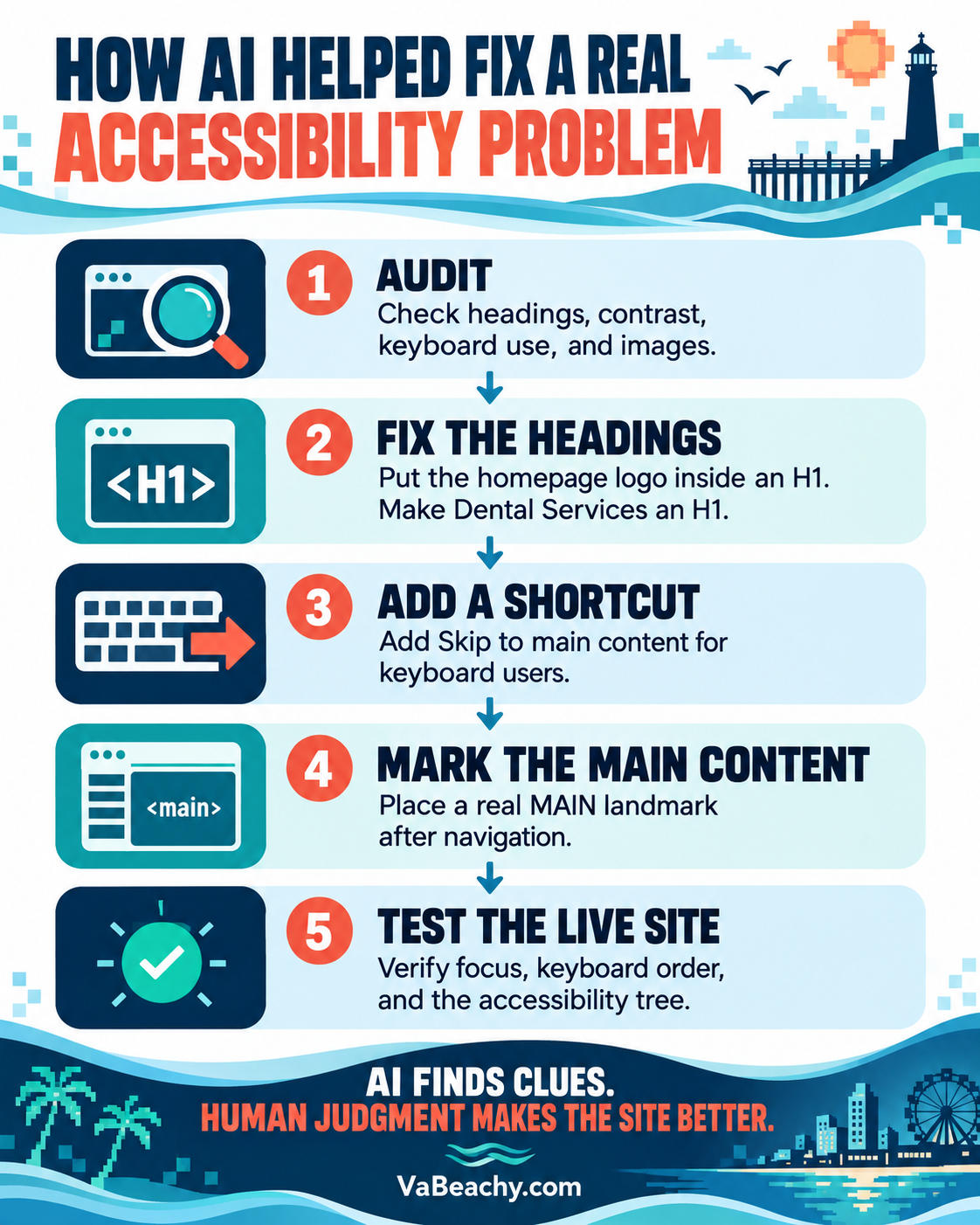
The audit started with the basics
I asked the AI to examine the public pages using the accessibility guidance published by the U.S. Department of Justice and the Web Content Accessibility Guidelines, better known as WCAG. It checked the homepage and the main interior pages for heading structure, image descriptions, keyboard access, color contrast, landmarks, link names, and mobile reflow.
The site already did several things well. Links had useful names. Images had alt text. Keyboard focus stayed visible. The pages worked at a narrow screen width. The embedded map had a descriptive title.
The audit also found a few gaps:
- The homepage did not have a level-one heading.
- The Services page started its visible content at an H2.
- The homepage needed a way to skip the navigation.
- The homepage content needed a proper
<main>landmark. - A few passages used text colors that fell just short of the WCAG contrast target.
This was not a giant rebuild. Most accessibility work looks like this: several small details determine whether the page makes sense outside its visual design.
The logo was the homepage title
The homepage presented an interesting H1 question. The practice name appeared inside a large logo graphic. Adding the same words as a visible heading would have looked repetitive.
We put the logo image inside the H1 and gave the image concise alt text:
<h1 class="site-title">
  <img
    src="vbmd-logo.png"
    alt="Virginia Beach Mercy Dental"
  >
</h1>
The page still shows one logo. A screen reader encounters a level-one heading named “Virginia Beach Mercy Dental.” The HTML now describes the same structure that a sighted visitor sees.
We changed “Dental Services” from H2 to H1 on the Services page as well. Its individual services remain H3 headings beneath it.
A skip link needs somewhere useful to go
A “Skip to main content” link lets a keyboard user bypass repeated navigation. The link belongs at the start of the page and usually stays hidden until it receives keyboard focus.
<a class="skip-link" href="#main-content">
  Skip to main content
</a>

<nav aria-label="Primary navigation">
  ...
</nav>

<main id="main-content" tabindex="-1">
  ...
</main>
The placement matters. If the target wraps the navigation too, the link does not bypass much. We moved the main landmark after the navigation and kept the homepage H1 inside it.
Then the AI tested the real behavior
Reading the HTML told us only part of the story. The AI opened the live site and used the keyboard path a visitor would use:
- Press Tab after the page loads.
- Confirm that “Skip to main content” receives focus first.
- Activate the link.
- Confirm that focus moves to the
<main>element. - Press Tab again and verify that focus reaches the first link in the main content instead of returning to navigation.
It passed. The accessibility tree also exposed the logo as an H1 named “Virginia Beach Mercy Dental,” and it exposed “Dental Services” as the main heading on the Services page.
That final verification was the best part of the process. An AI can suggest valid-looking code that still behaves badly after WordPress, a theme, and custom CSS finish with it. Testing the rendered page catches the difference.
AI worked best as a patient second set of eyes
I did not hand the site to a robot and receive an “ADA approved” sticker. No automated scan can provide that. Accessibility includes judgment, context, and testing with people who use assistive technology.
AI did help me move through the work faster. It found structural clues, explained why they mattered, translated the fixes into HTML, and checked the live result. I supplied the context and decided what belonged on the page.
That feels a bit like using a game guide. The guide can point out the hidden door. You still have to decide whether it belongs in your route, open it, and make sure it leads where the map says it does.
Three lessons I am keeping
- Match the semantics to the visual idea. If the logo functions as the title, the markup can express that without duplicating the design.
- Test behavior, not just code. A skip link only helps when it sends focus to the correct place.
- Use AI as an assistant, not a certificate. It can speed up an audit and explain the findings, but it cannot replace expert review or user testing.
The Department of Justice web accessibility guidance explains why accessible websites matter for businesses and public services. The W3C also documents ways to bypass repeated blocks and the use of semantic HTML landmarks.
I started with a website audit. I ended with a better homepage, a clearer Services page, and a repeatable workflow: ask, inspect, fix, test, and then test the live page once more.
This post describes my experience improving a website. It is not legal advice or a formal accessibility certification.
Leave a Reply